
thumbnail image
  • Home
  • About
  • Watch
  • Story
  • Feature
  • Sport 
    • Baseball
    • Basketball
    • Volleyball
    • Soccer
    • Racket
    • Hoop
  • Support
  • Download
  • 限時優惠
  • …  
    • Home
    • About
    • Watch
    • Story
    • Feature
    • Sport 
      • Baseball
      • Basketball
      • Volleyball
      • Soccer
      • Racket
      • Hoop
    • Support
    • Download
    • 限時優惠
    • Home
    • About
    • Watch
    • Story
    • Feature
    • Sport 
      • Baseball
      • Basketball
      • Volleyball
      • Soccer
      • Racket
      • Hoop
    • Support
    • Download
    • 限時優惠
    • …  
      • Home
      • About
      • Watch
      • Story
      • Feature
      • Sport 
        • Baseball
        • Basketball
        • Volleyball
        • Soccer
        • Racket
        • Hoop
      • Support
      • Download
      • 限時優惠
      • ScoreLive Hoop

        Built for street basketball. Made to bring the hype.

        Download Now
      • Let's Hoop It Up

      • Section image

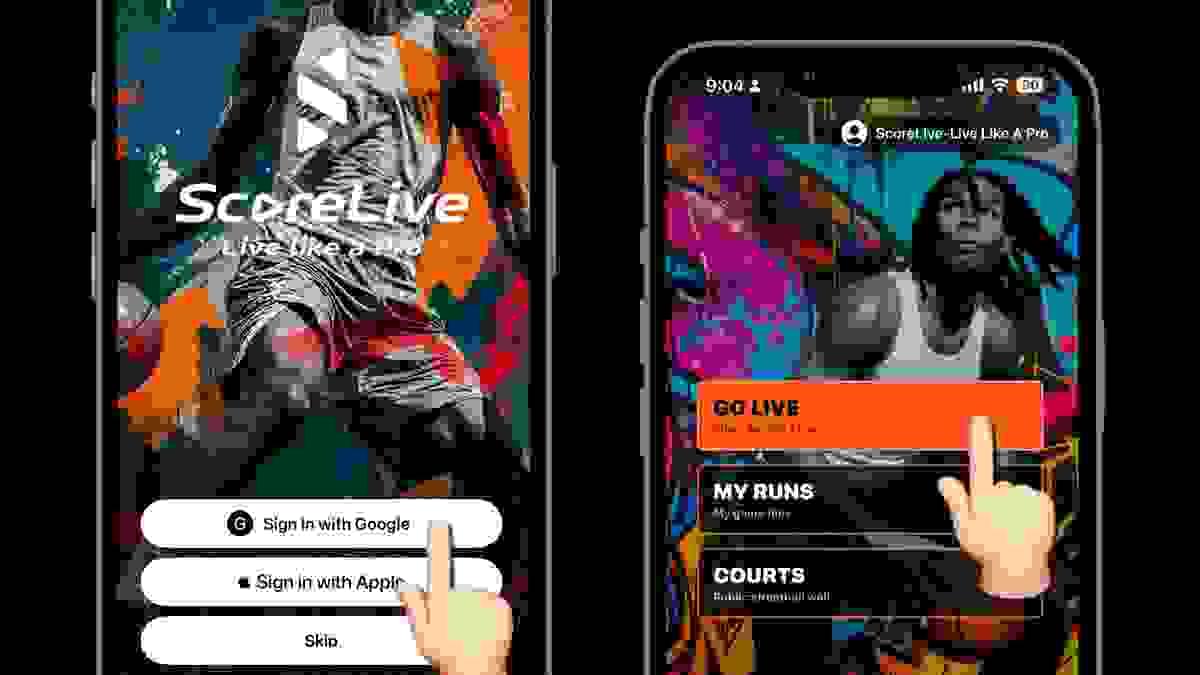
        Go Live on YouTube

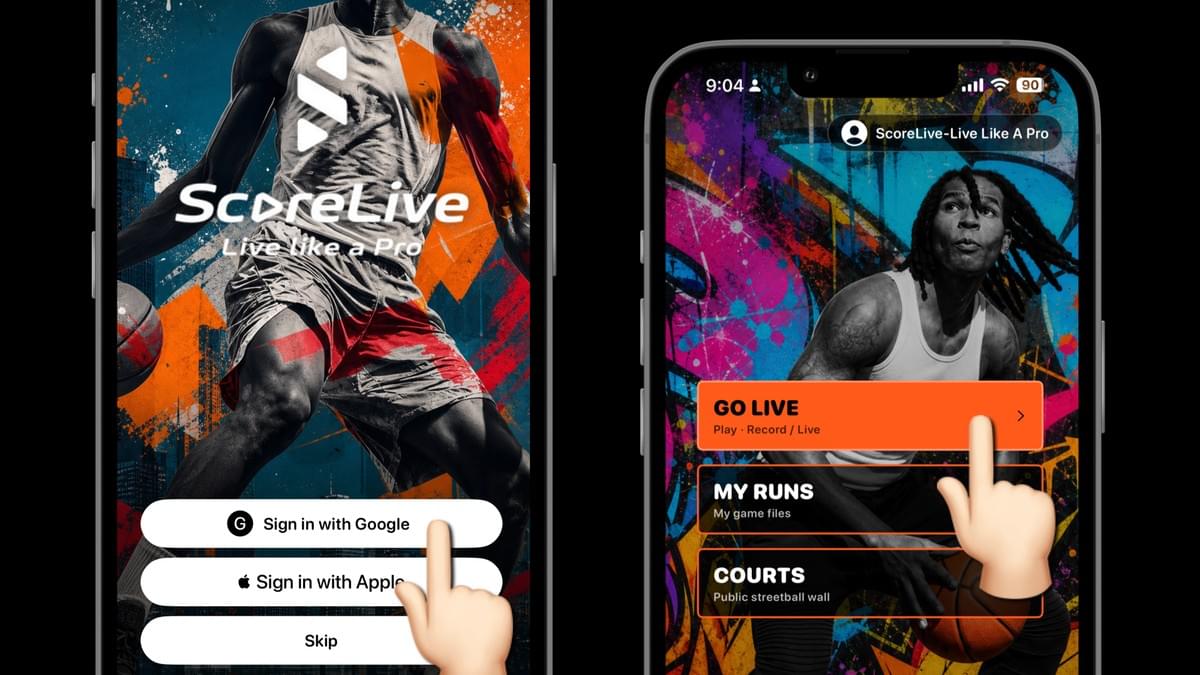
        Sign in with Google to connect your YouTube channel. Tap GO LIVE, set up your game, and start streaming directly to YouTube.
        Section image

        Vertical Live

        Go vertical. Built for live streaming and effortless sharing on short-form social platforms, so your content fits naturally into feeds, stories, and reels without extra editing or reformatting.
        Section image

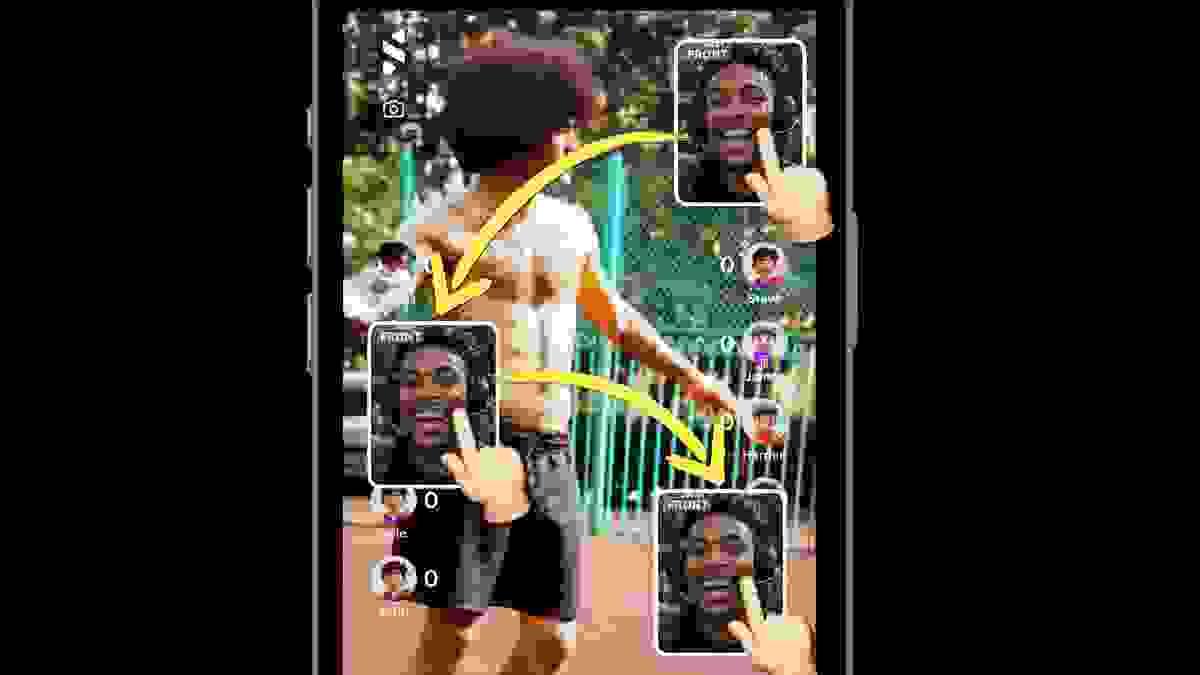
        Be Part of the Live

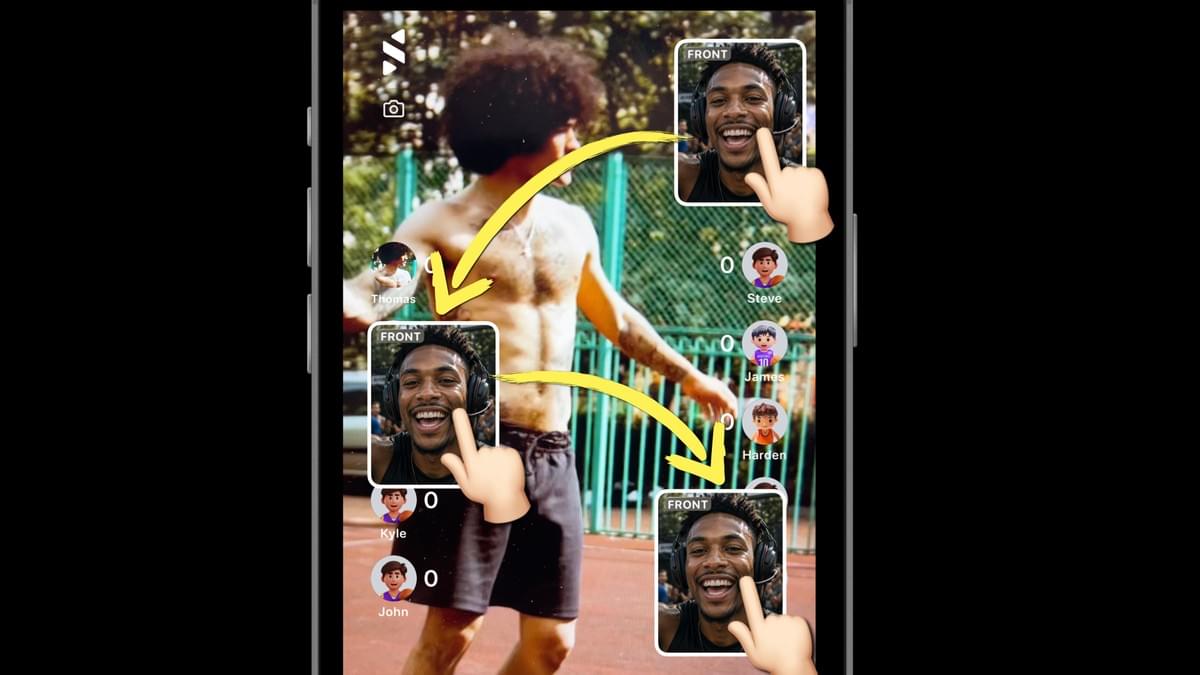
        Stream with the front and rear cameras at the same time. Show yourself in a movable picture-in-picture window while capturing the game. Available on supported devices.
        Section image

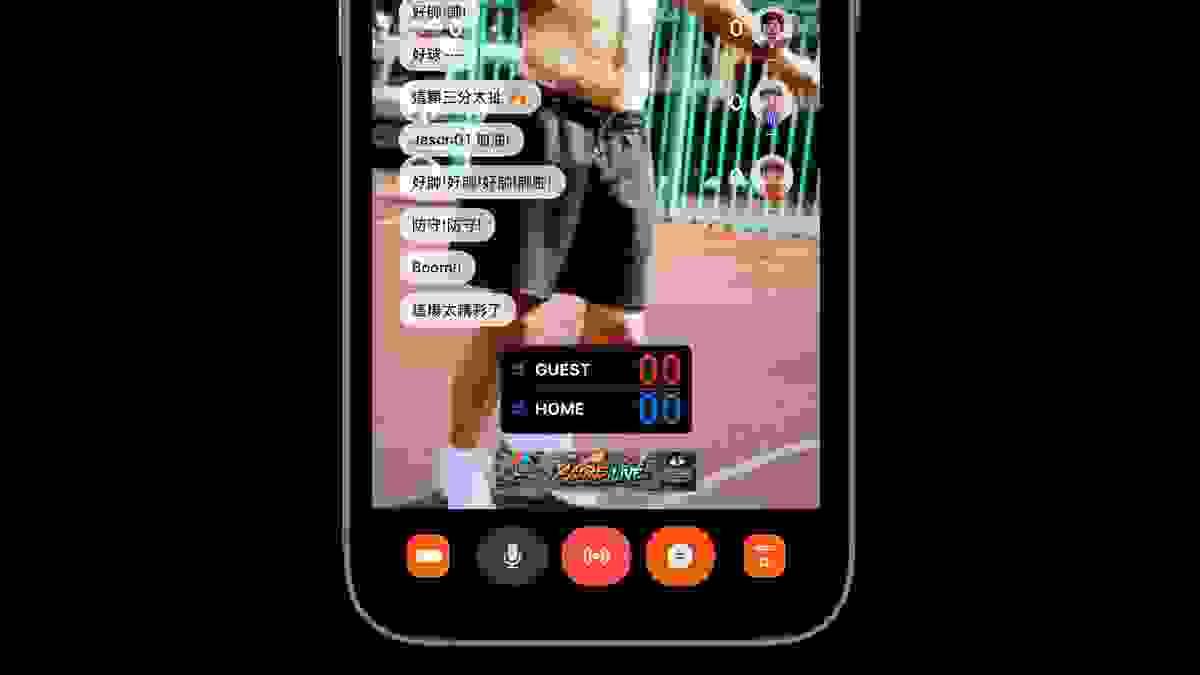
        Live Chat

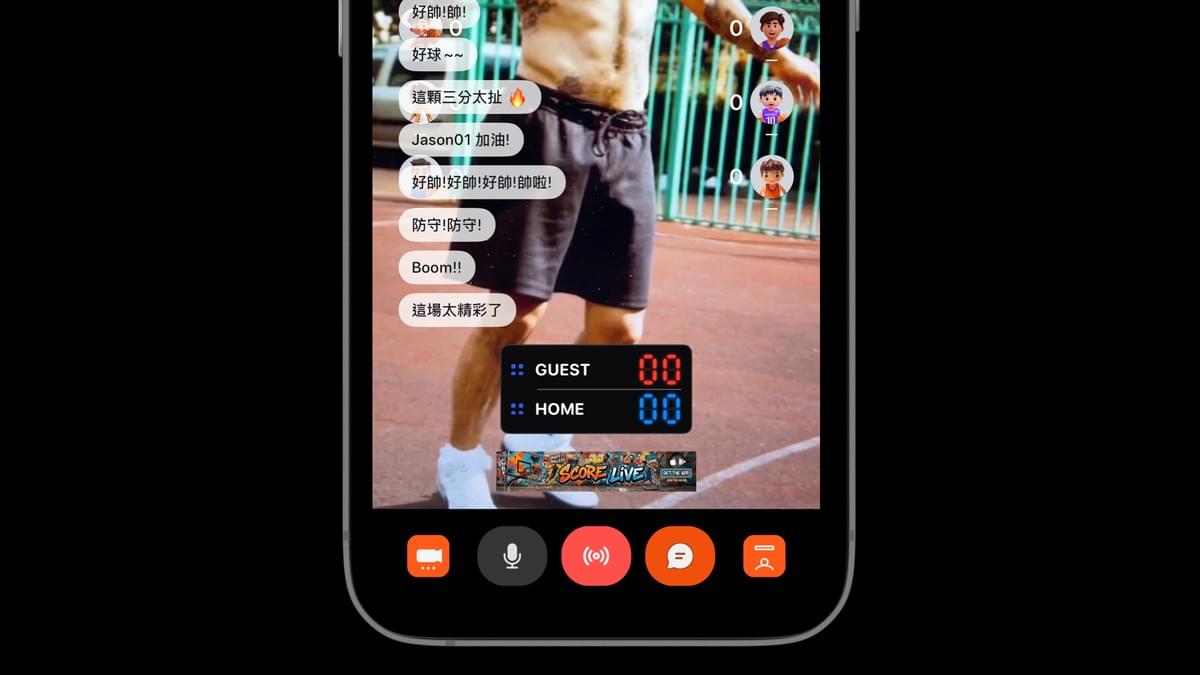
        Unlock live chat with a subscription and show YouTube comments directly on your stream, bringing your audience into the game in real time.
        Section image

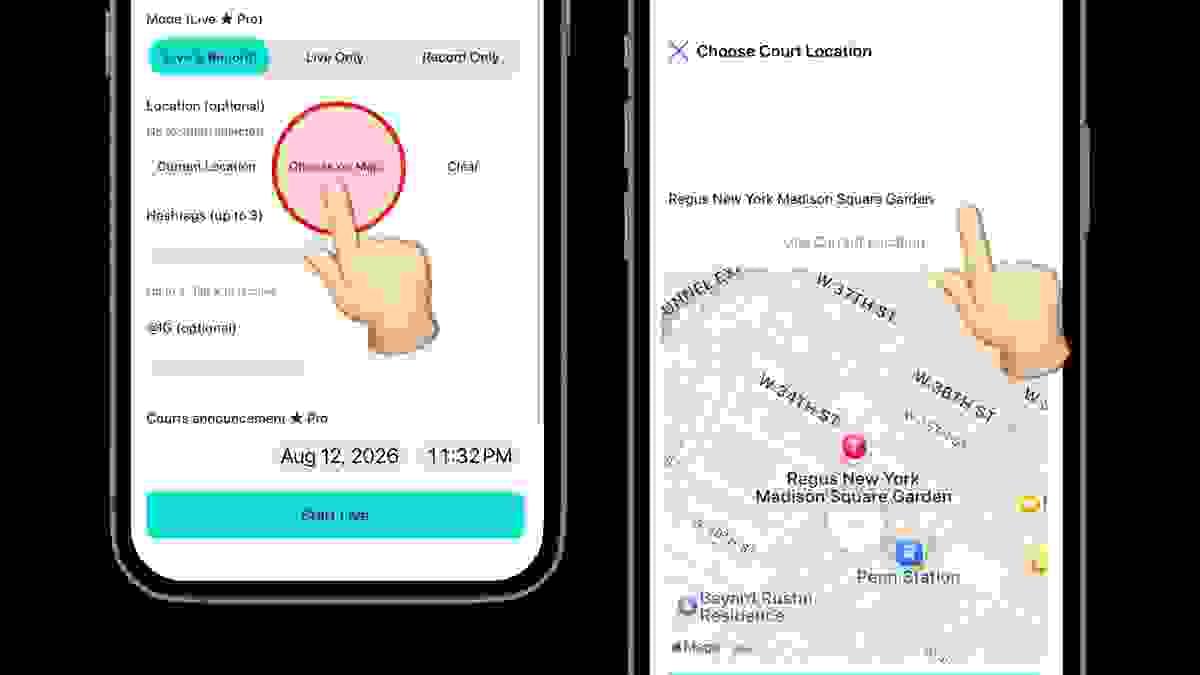
        Court Check-In

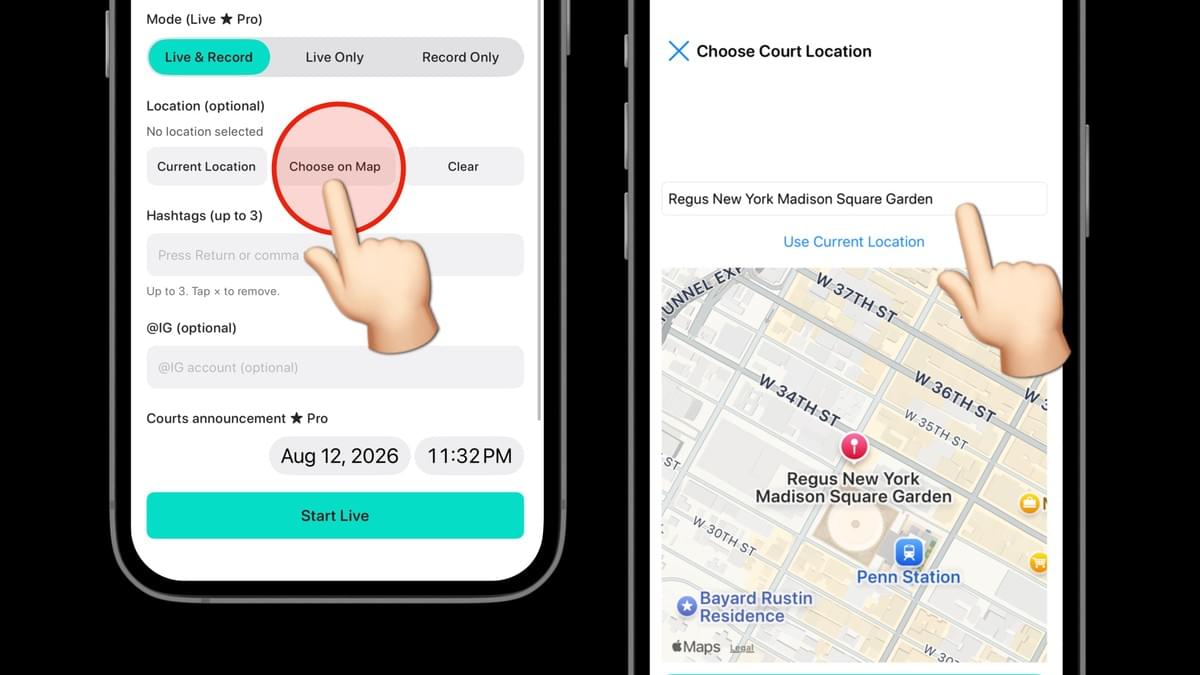
        Add hashtags, Instagram, and your court location before going live. You can also announce your next game in advance and bring more people into the action.
        Section image

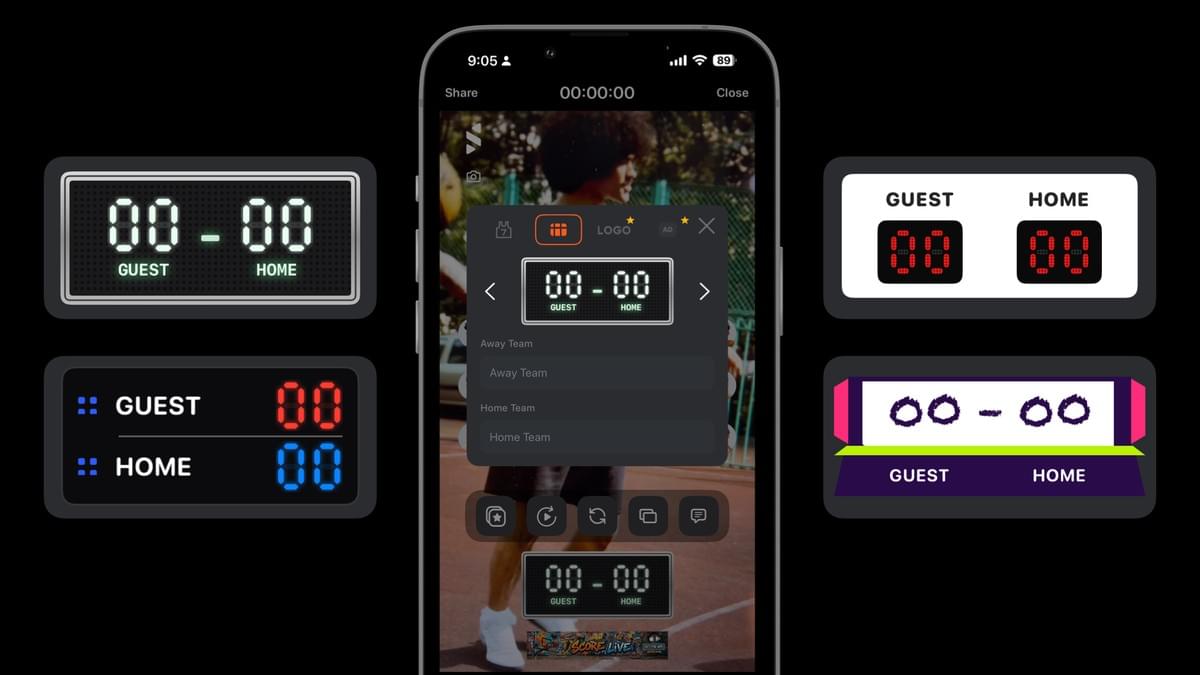
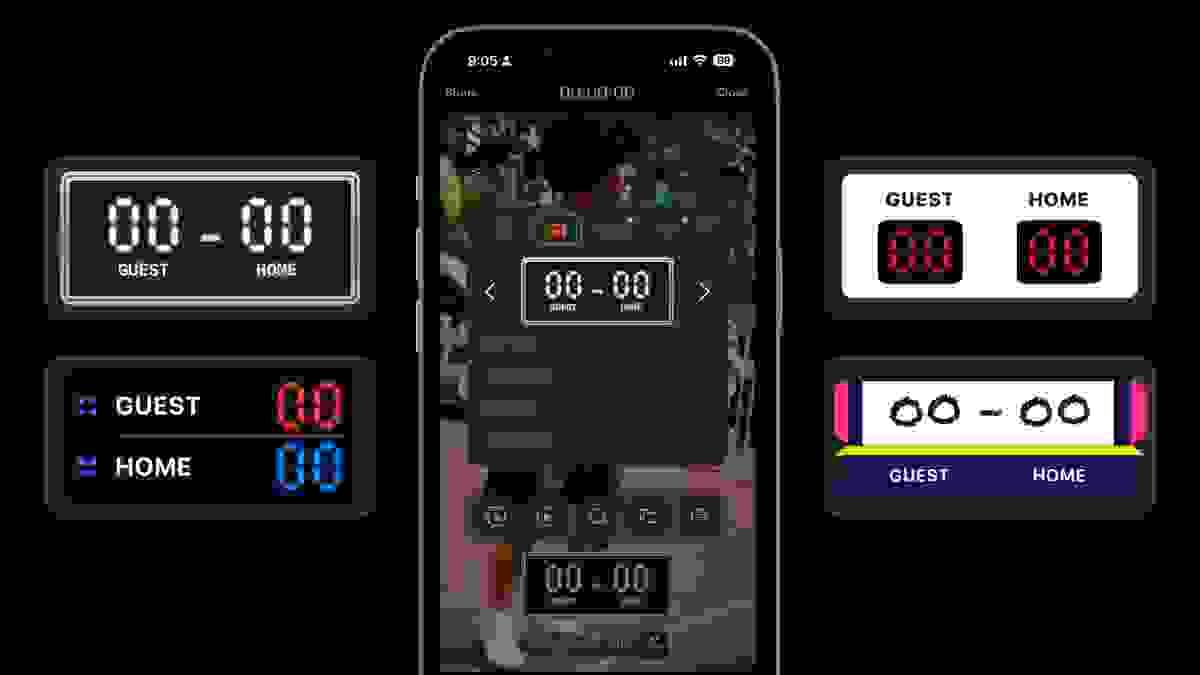
        Pick Your Scoreboard

        Choose from multiple street-inspired scoreboard styles, add your team names, and give every stream your own look.
        Section image

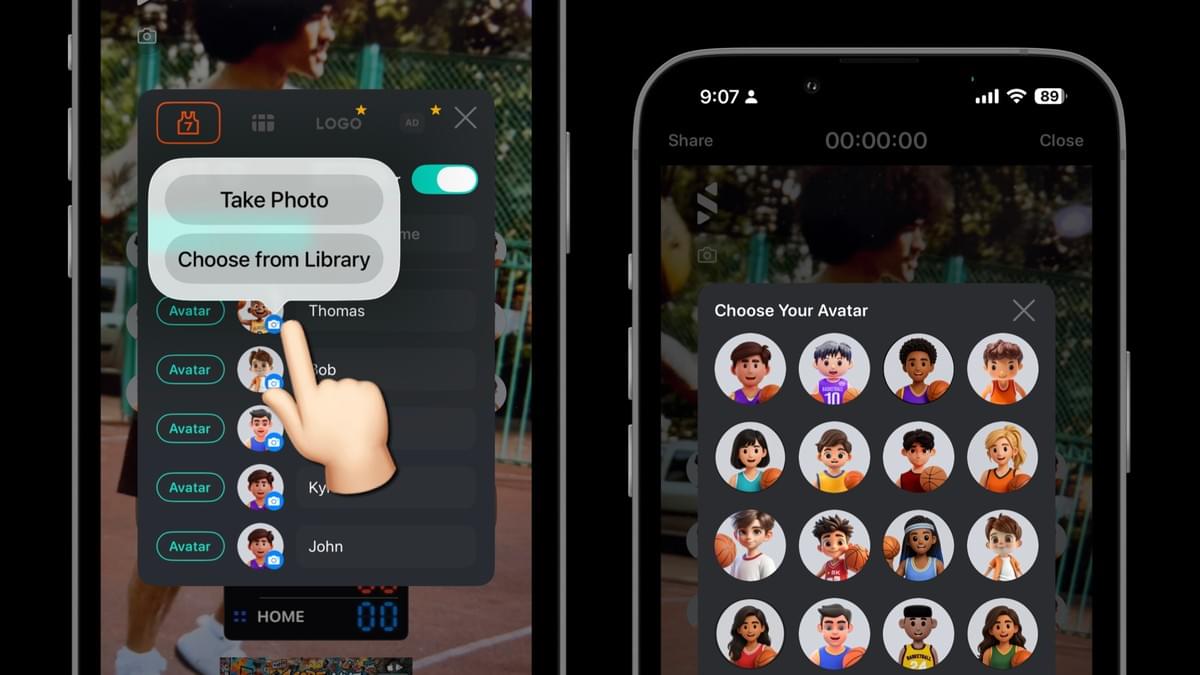
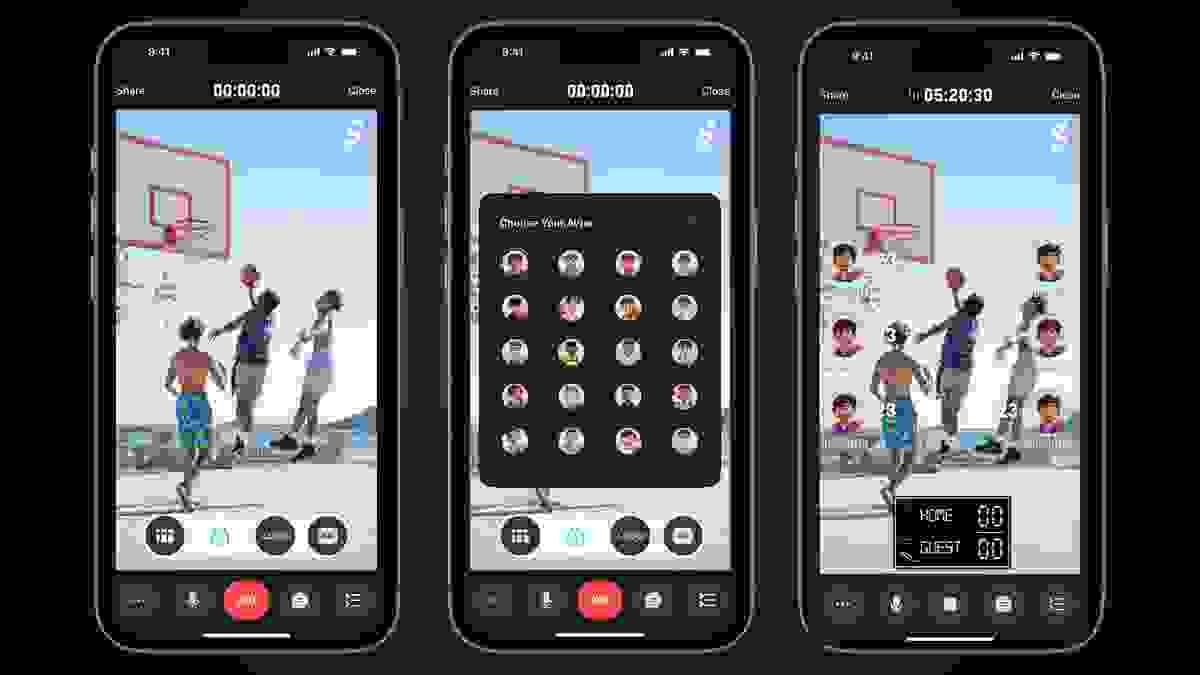
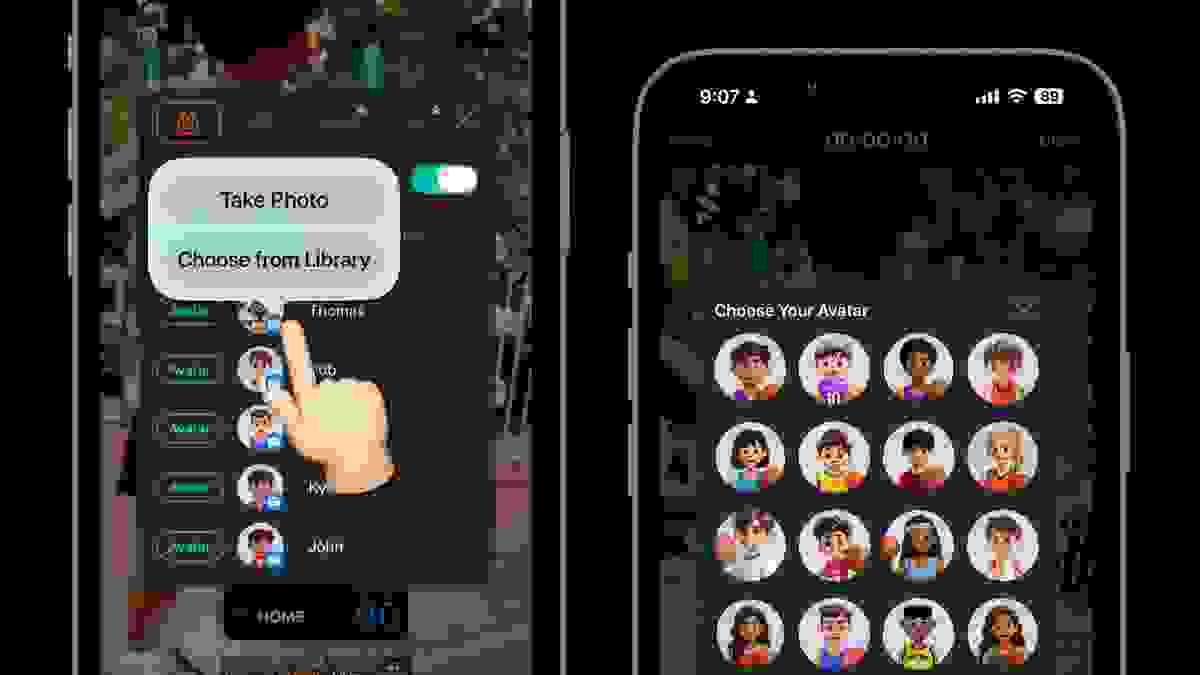
        Player Avatars

        Choose a ScoreLive avatar, pick a photo from your library, or take one on the spot. Show every player right on the live screen.
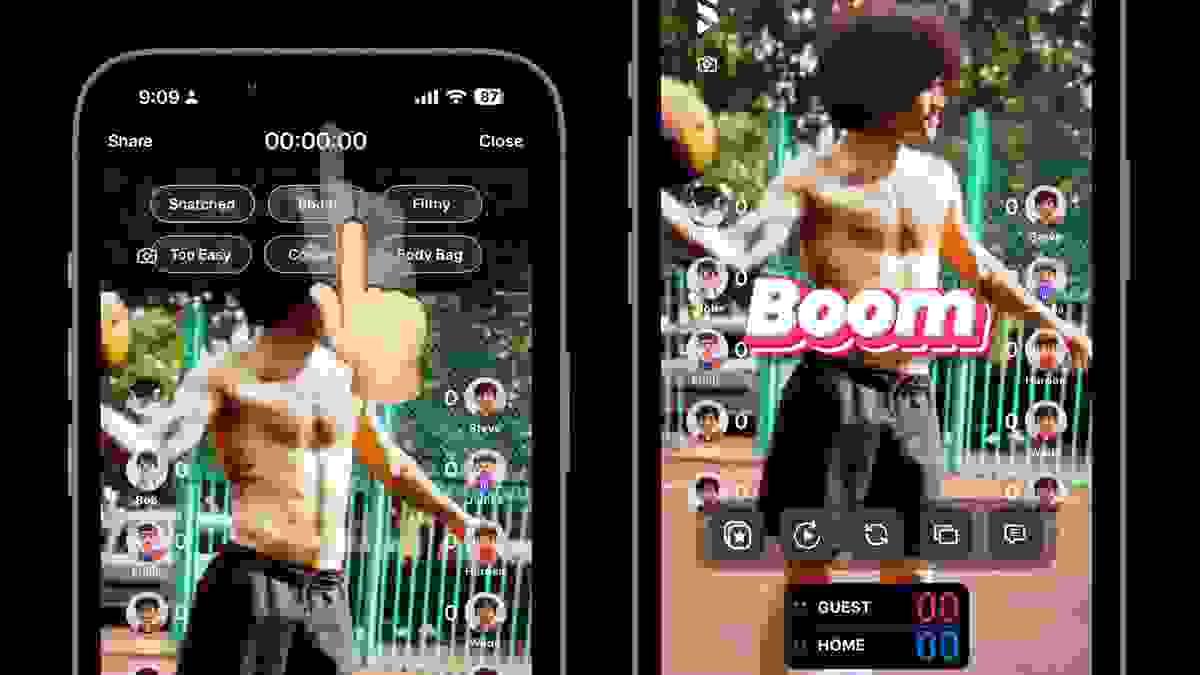
        Section image

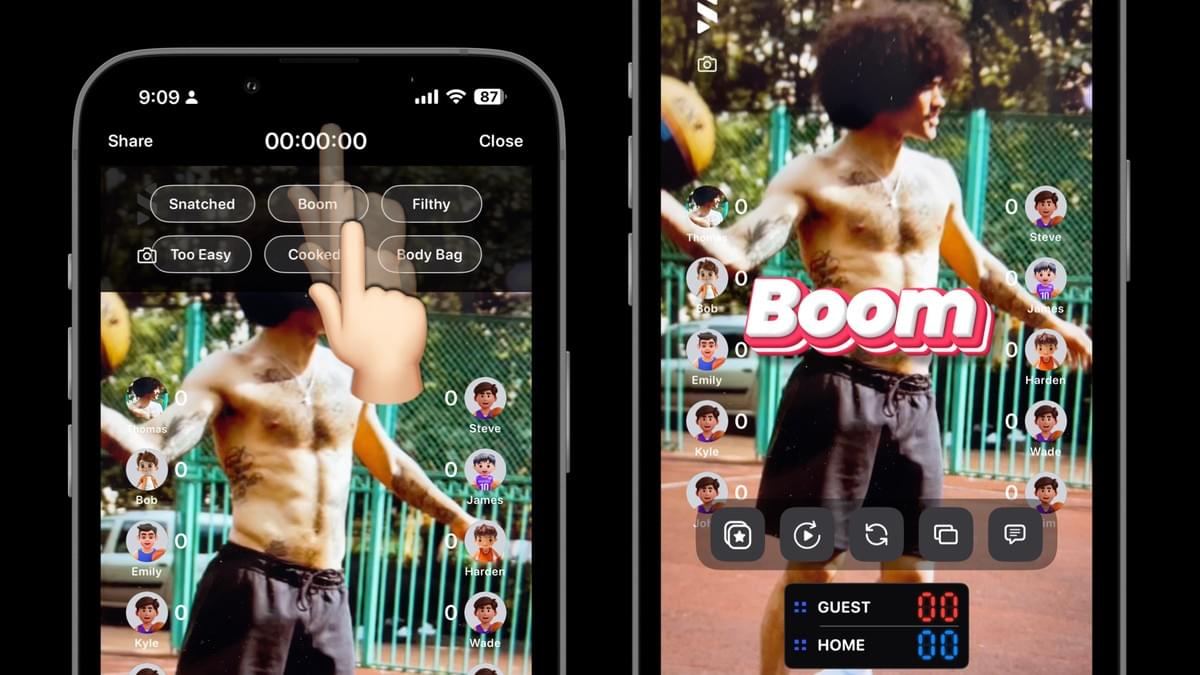
        Hype Effects

        Swipe down to open Hype Effects. Tap one to drop it on screen instantly—it disappears automatically after one second.
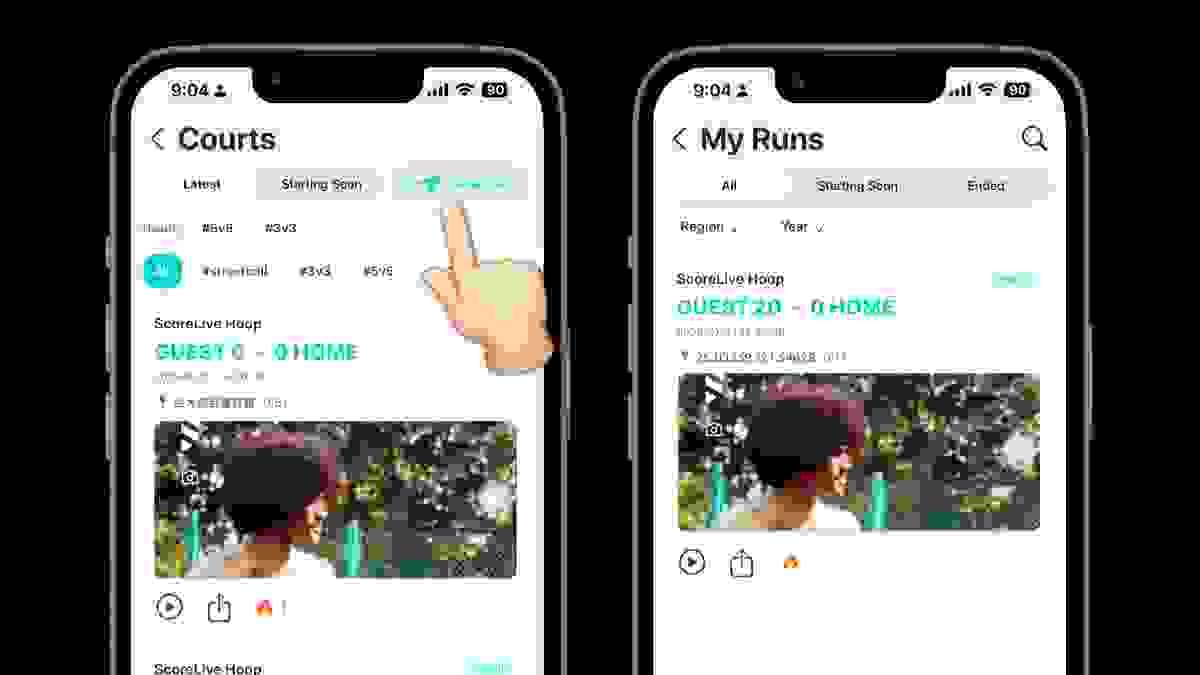
        Section image

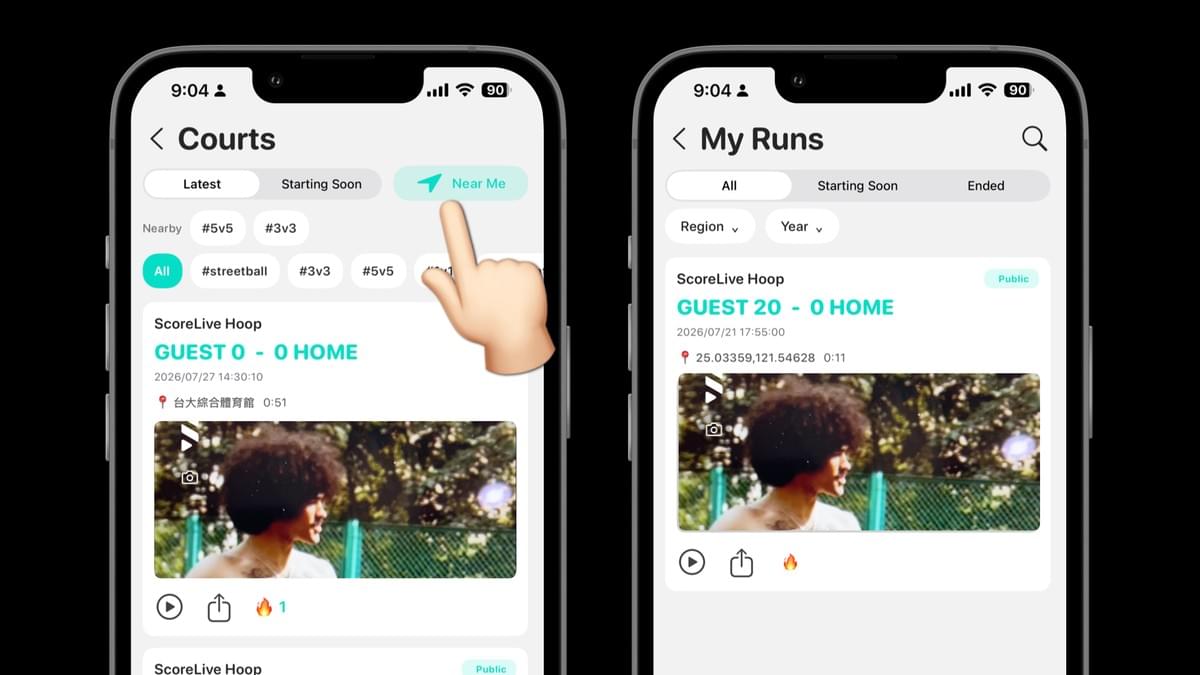
        Courts & My Runs

        Discover public live games in Courts, filter by hashtags, or find games happening near you. My Runs keeps all your live games in one place, ready to revisit or share anytime.
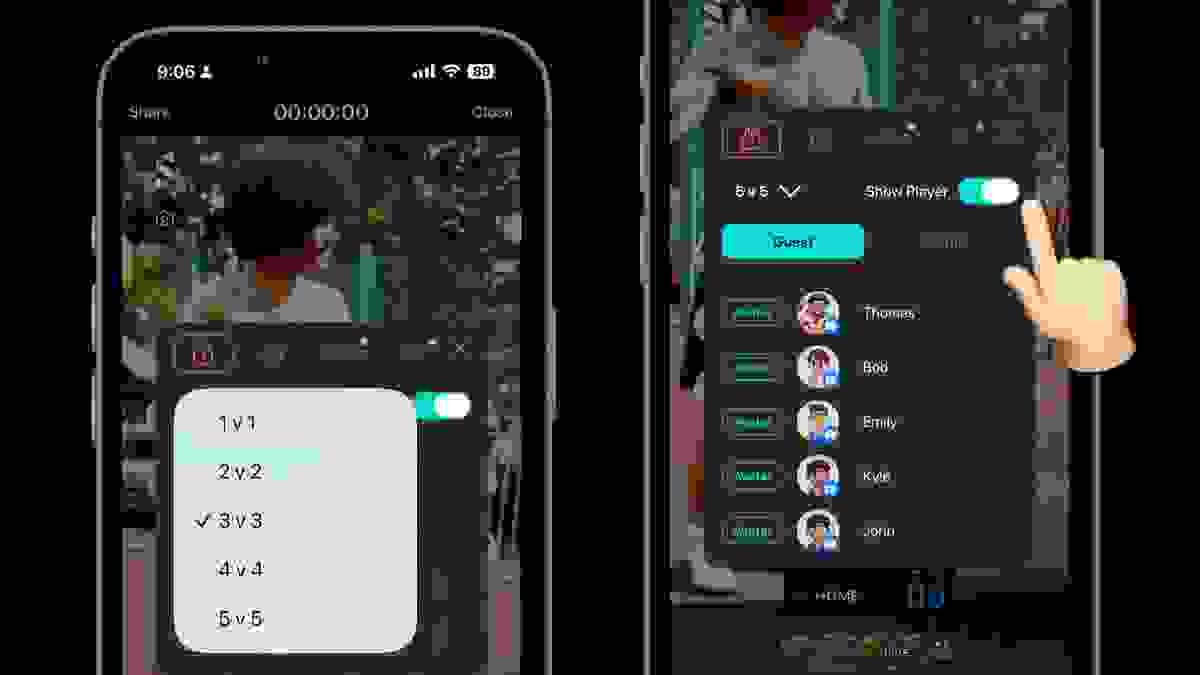
        Section image

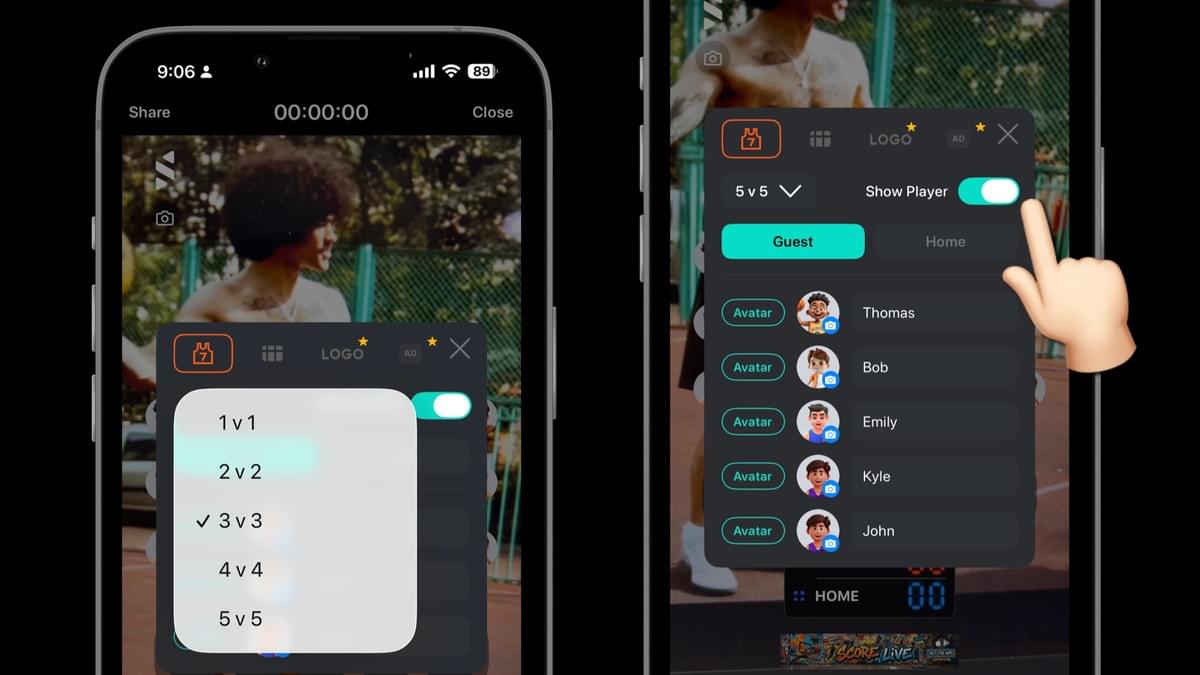
        1v1 to 5v5

        Play anything from 1v1 to 5v5. Set your on-court players and matchups, and choose whether to show player avatars on screen.
        Section image

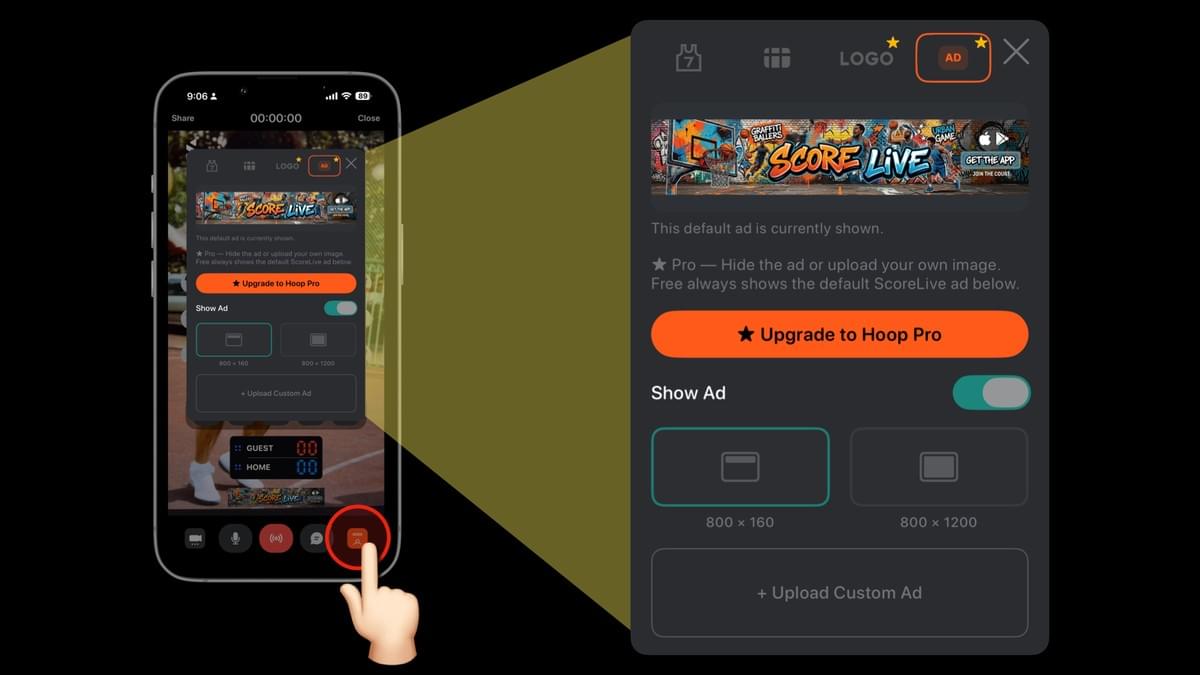
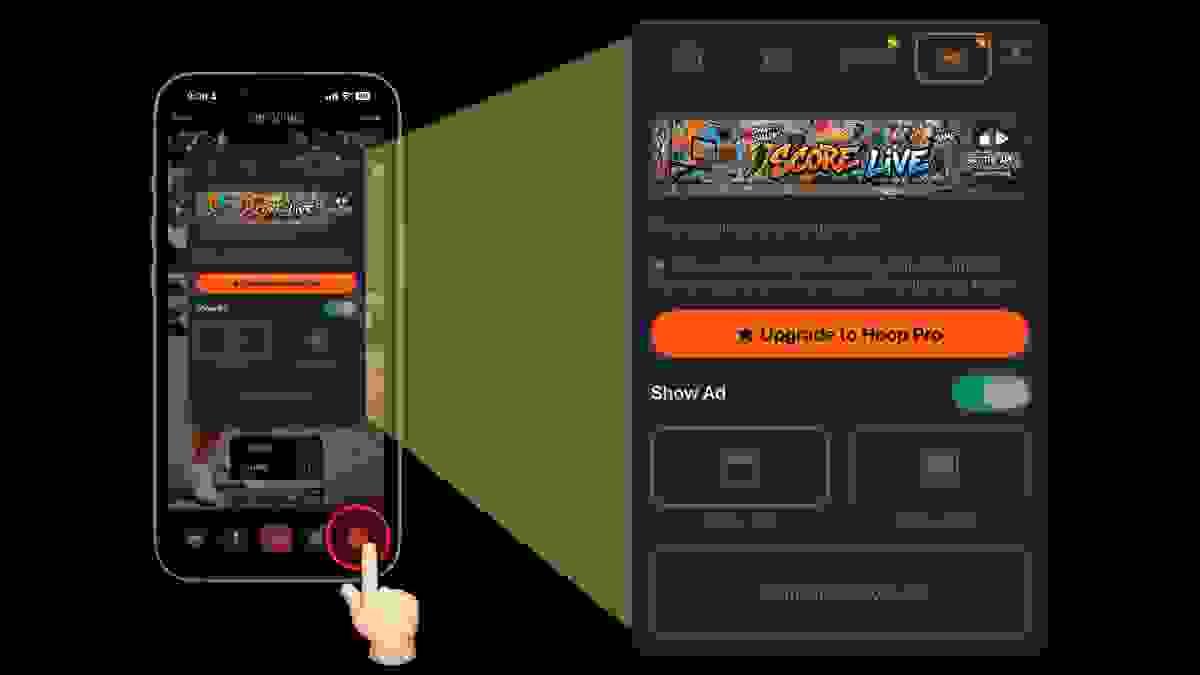
        Custom Ads

        Upgrade to Hoop Pro to upload your own ads. Choose between banner and full-screen formats to feature your brand or sponsors directly in your stream.
        Section image

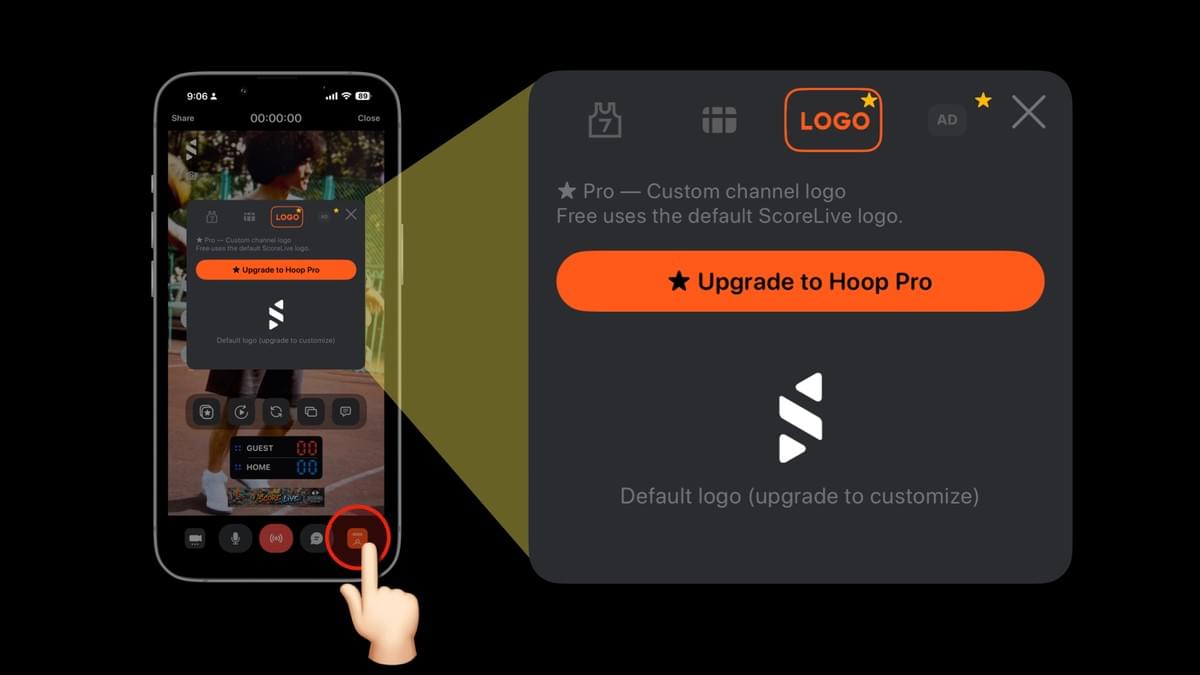
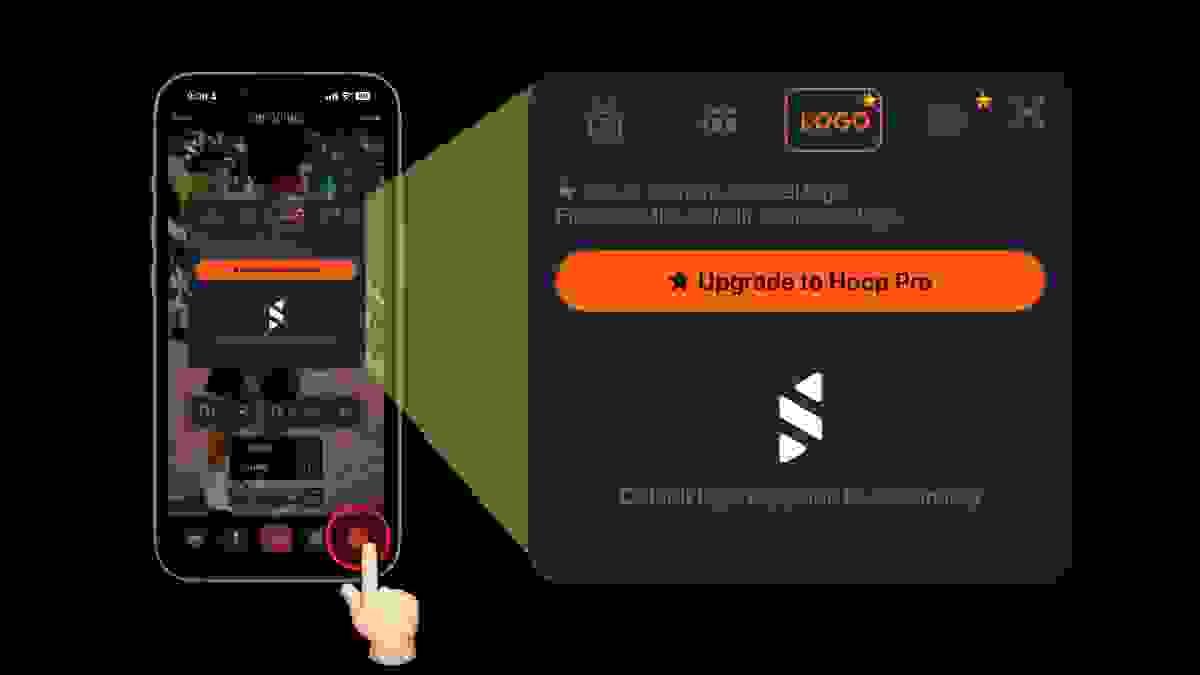
        Custom Channel Logo

        Upgrade to Hoop Pro to add your own channel logo directly to the live screen and make every stream your own.

      • FAQs

        How to Keep Score?

        ScoreLive Hoop gives you two ways to keep score. When player avatars are shown, simply tap a player to add their points, and the team score updates automatically.

        When player avatars are hidden, tap the team score on the scoreboard to bring up the scoring controls and score directly for the team.

        How to Change Team Names on the Scoreboard?

        Tap the Player Settings icon in the bottom-right corner to open the player, scoreboard, channel logo, and custom ad settings. Go to the Scoreboard tab to choose a scoreboard style and enter the names of both teams. Your team names will appear on the live scoreboard instantly.

        How to Turn Off Picture-in-Picture?

        Tap the Camera Settings icon in the bottom-left corner to open the Highlight Recording, Instant Replay, Camera Switch, Picture-in-Picture, and Hype Effects menu. Tap the Picture-in-Picture icon to turn it on or off anytime.

        How to Use Highlight Recording & Instant Replay?

        Tap the Camera Settings icon in the bottom-left corner to open Highlight Recording, Instant Replay, Camera Switch, Picture-in-Picture, and Hype Effects.

        Tap Highlight Recording to save the last 5, 10, 15, or 20 seconds of action.

        Tap Instant Replay to replay the action instantly. Standard-speed replay is available for free, while Hoop Pro unlocks 0.5× and 0.25× slow-motion replay.

        How to Show Live Chat?

        When your YouTube stream is set to Public or Unlisted with live chat enabled, viewers can post comments during the stream. Tap the Live Chat button at the bottom of the screen to display viewer comments directly on your live stream. Upgrade to Hoop Pro to unlock this feature.

        How to Mute the Microphone?

        Tap the Microphone icon in the bottom menu to mute or unmute your microphone anytime during the stream.

      • Go live with ScoreLive Hoop
      Company

      About

      Support

      Download

      Privacy policy

      Term of service

      Sports

      Baseball

      Basketball

      Volleyball

      Soccer

      Racket

      Hoop

      Contact Us

      Email:

      support@scorelive.app

      LINE:

      https://lin.ee/z7m093T

      Company LinkedIn

      Founder LinkedIn

      © 2026 Score Live Company, Ltd.

        Cookie Use
        We use cookies to ensure a smooth browsing experience. By continuing we assume you accept the use of cookies.
        Learn More